Local-first VRChat companion

Heart-rate relay from your watch to VRChat, without a cloud account.

WearStream connects your watch, phone, and desktop app so live BPM can flow into your local VRChat setup. The smoothest setup is scan-first: start the desktop relay, let the QR code appear automatically, scan it in the phone app, and start streaming.

Download for Windows

Windows desktop v0.1.5

Download for macOS

macOS desktop v0.1.5

See quick start

Download the desktop app first, then use the QR pairing flow below to get the phone connected with less typing and fewer setup mistakes.

How it works

One relay contract, multiple platform paths

Wear OS watch + Android phone

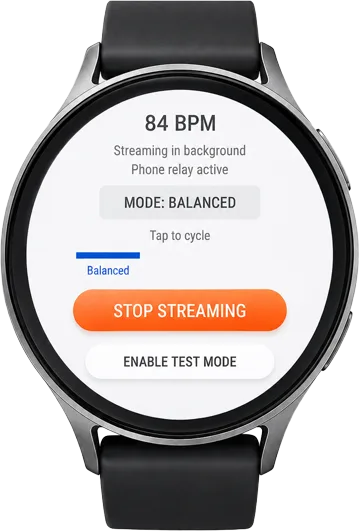
The original WearStream path reads heart-rate data from a Wear OS watch, relays it through the Android phone app, and forwards it to the local desktop listener.

Apple Watch + iPhone

WearStream also includes native Apple app targets for WatchConnectivity relay plus a local WebSocket handoff from iPhone to the same desktop listener contract.

Desktop app

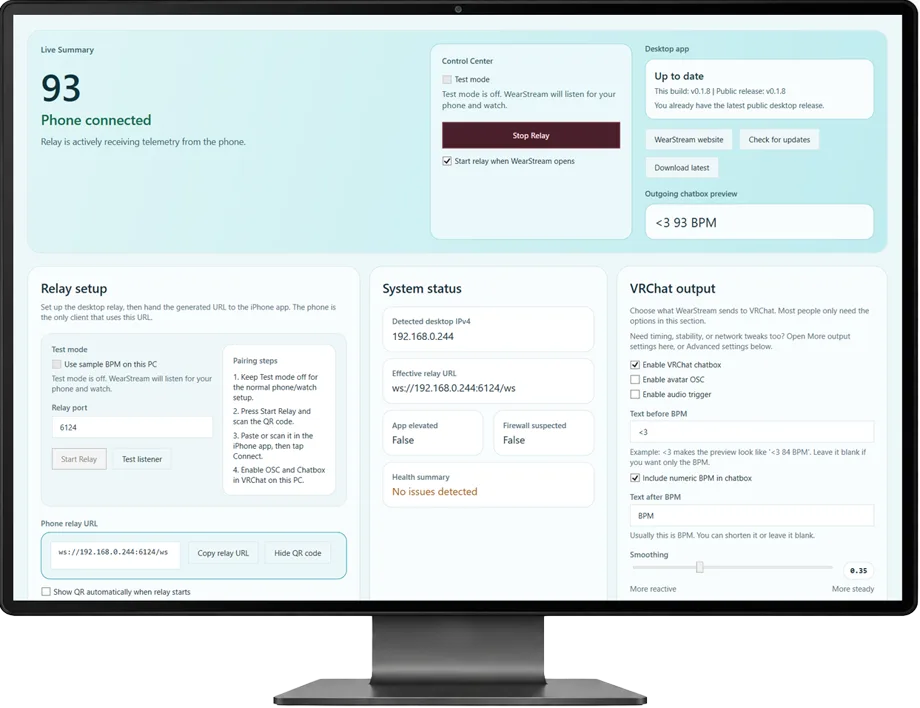
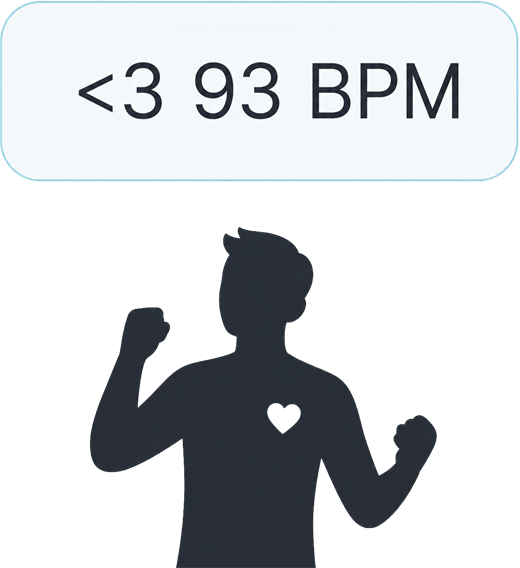
The desktop side receives local telemetry and forwards it into your VRChat output pipeline, with public downloads available for Windows and macOS.

Quick start

Fastest first run: scan, connect, stream

Desktop Start the relay

Open WearStream on the machine running VRChat and click Start Relay.

Desktop Scan the QR code

After the relay starts, the desktop app shows the QR code automatically so the phone can scan the exact local relay address.

Phone Scan and start

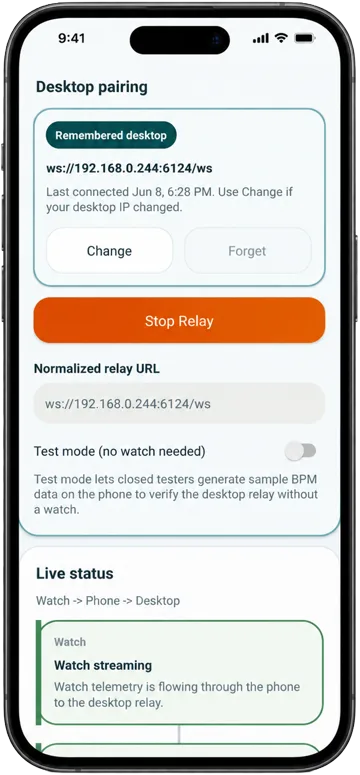
Open the phone app, use the QR scanner, confirm the relay URL, then tap Start Relay.

Watch Start streaming

Open the watch app, allow heart-rate access, and start the live stream.

  1. Open the desktop app on the machine running VRChat and click Start Relay. The QR code appears automatically.
  2. Open the phone app, scan the QR code, then tap Start Relay.
  3. Open the watch app, allow heart-rate access and any needed background permission, then start streaming.

Manual paste still works, but QR scanning is usually the quickest and least error-prone setup path.

Downloads

Choose your desktop app

Windows

Use the direct `.exe` download for the main Windows desktop app.

Current public version: v0.1.5

Download the Windows app

macOS

Use the universal macOS zip, then open the app from the extracted folder.

Current public version: v0.1.5

Download the macOS app

Best pairing method

After installing the desktop app, use the QR scan flow instead of typing the relay URL by hand whenever possible.

First Open

What to expect the first time

Windows safety prompt

If Windows shows a SmartScreen warning because the app is unsigned, confirm the file came from the official WearStream download page or GitHub release, then choose More info and Run anyway.

macOS safety prompt

If macOS says the app cannot be opened because the developer cannot be verified, unzip it, then Control-click or right-click the app and choose Open.

If macOS still blocks it

Open System Settings -> Privacy & Security and use Open Anyway for WearStream, then launch it again.

Downloads

Choose your desktop app

Windows

Use the direct `.exe` download for the main Windows desktop app.

Current public version: v0.1.5

Download the Windows app

macOS

Use the universal macOS zip, then open the app from the extracted folder.

Current public version: v0.1.5

Download the macOS app

What changed

The old public Windows portable ZIP has been retired from the public downloads flow. The site now points only to the main Windows app and macOS download.

First Open

What to expect the first time

Windows safety prompt

If Windows shows a SmartScreen warning because the app is unsigned, confirm the file came from the official WearStream download page or GitHub release, then choose More info and Run anyway.

macOS safety prompt

If macOS says the app cannot be opened because the developer cannot be verified, unzip it, then Control-click or right-click the app and choose Open.

If macOS still blocks it

Open System Settings -> Privacy & Security and use Open Anyway for WearStream, then launch it again.

Help

Where each thing goes

QR pairing

The desktop app can show a QR code for the local relay URL such as ws://192.168.x.x:6124/ws. Scan that in the phone app when you can. VRChat does not use this URL.

VRChat OSC

On the same desktop machine, open VRChat and enable OSC and Chatbox in Settings -> OSC. The desktop app normally stays on 127.0.0.1:9000.

If something fails

Use Test listener in the desktop app, make sure the phone and desktop are on the same Wi-Fi network, and confirm the watch still has heart-rate access plus any required background permission.

Support email: wearstream.support@gmail.com

Why WearStream

Built to stay local

No cloud account

The core relay flow is designed around your own watch, phone, desktop, and local network.

No ads or analytics SDKs

The mobile apps are built without ad tech or analytics SDK integrations.

Not a medical device

WearStream is a companion relay utility for live BPM display and VRChat workflows, not a diagnostic or treatment tool.

Legal

Independent project notice

WearStream is an independent project and is not affiliated with, endorsed by, or sponsored by VRChat, Samsung, Google, or Wear OS.

VRChat and related names, marks, and products are the property of their respective owners.